Open topic with navigation
Create Variables
Use the Dictionary
For explanations on dictionary usage, including how to create and rename variables, Dictionary Contextual Menu
Create Variables from the Editors
You can create variables directly from the 61131-3 editors, as follows:
editor
- Click the dedicated button
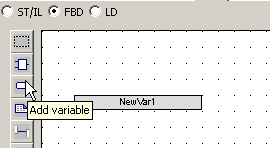
Figure 5-85: Add Variable in FBD Editor
- Click a location in the editor (or double-click the variable if it is already created)
- Edit the name in the Variable Editor (or select an existing variable within the list which is already filtered according to their relevant data type)
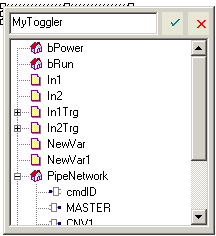
Figure 5-86: Define Variable Name in FBD Editor
- The KAS automatically checks if the variable already exists. If it is new, you have to:
- Select its type in the drop-down menu: for FBD and FFLD, it is set by default according to the In or Out data type of the function block
- Specify where it is defined: the default is the current program, but you can choose to make the variable Global or declared as a retain variable
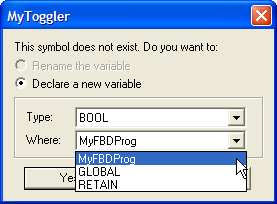
Figure 5-87: Define Variable Type in FBD Editor
FBD variables
FFLD editor
- Double-click the in or out pins of the function block
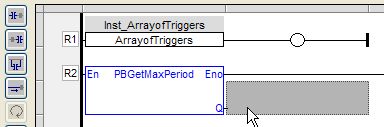
Figure 5-88: Add a Variable in the FFLD Editor
- Edit the name (or select an existing variable within the list which is already filtered according to their relevant data type)
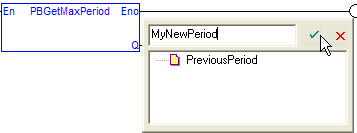
Figure 5-89: Define a Variable Name in the FFLD Editor
- The KAS IDE automatically checks if the variable already exists. If it is new, you have to:
- Select its type in the drop-down menu (by default, it is set according to the In or Out data type of the function block)
- Specify where it is defined
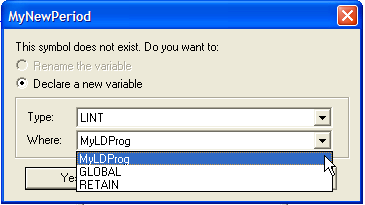
Figure 5-90: Define a Variable Type in the FFLD Editor
Data Types
You can create a variable of available Data Types.
For a list of types, List of Data types
Arrays
Complex Structures
Complex variables are arrays, structures, and instances of function blocks. The following features are allowed for programming:
- Use arrays of structures
- Use arrays of FB instances
- Pass any complex data (array, structure, instance) to a or sub-program
There is almost no limitation in the amount of complex data declared (theoretically up to 4GB, but practically limited by the memory available in the )
For more explanations on the Structure concept, refer to Structures
Declare the structure
- Right-click in the Dictionary to open the menu
- Select the Add structure command
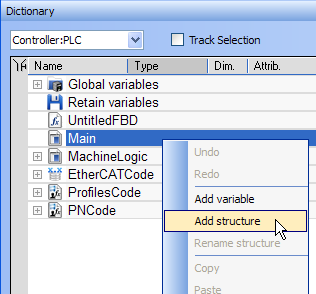
Figure 5-92: Add a Complex Structure
- Right-click on the newly created structure and select the Rename structure command
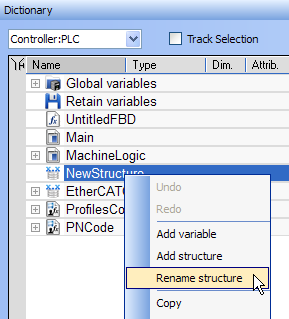
Figure 5-93: Rename Complex Structure
- Right-click on the new structure and select the Add variable command
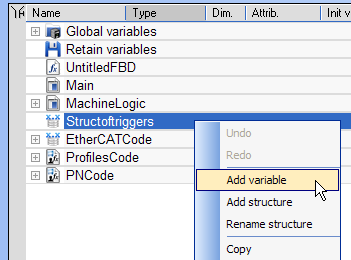
Figure 5-94: Add Variable to a Complex Structure
- Expand the new structure
- Double-click on the new nested variable and define its name and type
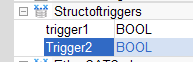
- Repeat steps 5 and 7 to add all the requested variables
Create an instance of the structure
When finalized, you can drag-and-drop the structure from the library in the (Project) node to a program just like any other function block. A new instance is automatically created.
- Select the new structure and move it with a drag-and-drop operation to the program declaration within the Dictionary
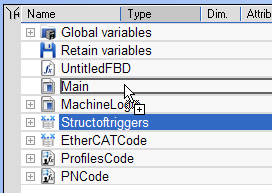
Figure 5-95: Create an Instance of the Structure
- You can also add a variable in the Dictionary with the Add variable command. Then double-click on the new variable to define its type by selecting the structure type which is displayed in the Type drop-down menu.
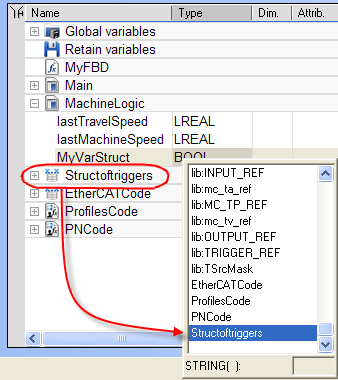
- Then you can drag this new instance and drop it in your program like any other variable
 See Also
|
|
Copyright © 2015 Kollmorgen™
|
|

|
Open topic with navigation